How to Make a Minecraft Mod in 2026: Beginner Guide With or Without Coding:
Mods
By GamerCubic Editorial Team
Last checked: September 20, 2026
Version checked: Minecraft Java Edition 26.3 stable; current Fabric and MCreator documentation workflows
Making a Minecraft mod in 2026 is easier than many players think. You can either use a no-code tool like MCreator to build items, blocks, and simple mechanics visually, or you can create a real coded mod using Java and a loader such as Fabric. The best path depends on your goal: if you want a fast beginner-friendly start, use MCreator; if you want more control and long-term modding skills, use the coding route.
Players usually get stuck because they mix up Minecraft versions, loaders, Java setup, textures, and build steps. This guide fixes that by showing the whole process clearly from planning to testing.
Quick Takeaway: The easiest way to make a Minecraft mod in 2026 is to choose one path first—MCreator for no-code modding or Fabric for coding—then build one simple custom item before trying bigger features like mobs, biomes, or dimensions. ✅
Beginner path: If you only want to play existing mods, start with How to Add Mods to Minecraft. For broader fundamentals, use the Minecraft Beginner Guides hub.
Quick Answer
To make a Minecraft mod in 2026, first decide whether you want a no-code workflow or a coding workflow. For no-code, use MCreator to visually create a simple item, block, or mob, then test and export the mod. For coding, use Java + Fabric, generate a mod project, create and register your first item, add textures and language files, run the development client, and export the .jar file.
| Path | Best For | Difficulty | Main Tools |
|---|---|---|---|
| MCreator | Complete beginners | Easy | MCreator, Java |
| Fabric + Java | Long-term modding skills | Medium | JDK, Fabric, IDE, Gradle |
Java Mods vs Bedrock Add-Ons: Choose the Right Project
This guide’s MCreator and Fabric workflows target Minecraft: Java Edition. Bedrock Edition customization uses Add-Ons built from behavior packs and resource packs, usually distributed as .mcaddon or .mcpack files. Do not start a Fabric project if your goal is to publish a Bedrock Add-On.
| Your goal | Best starting path | First finished project |
|---|---|---|
| Make a Java mod without writing much code | MCreator with a supported generator | One item or block with a recipe |
| Learn maintainable Java mod development | Fabric + JDK + IDE + Gradle | Registered item with texture, name, and test build |
| Customize Bedrock Edition | Microsoft’s Add-On workflow | Behavior/resource pack tested in a copied world |
Scope note: Loader, generator, and JDK requirements change. Select the Minecraft version first, then follow the exact prerequisite versions listed by the current Fabric or MCreator documentation for that project.
What You Need Before You Start Modding
Before making your first mod, set up the right tools. This is where many beginners go wrong. If your Java version, Minecraft version, or loader version does not match, the mod may fail before you even test it.
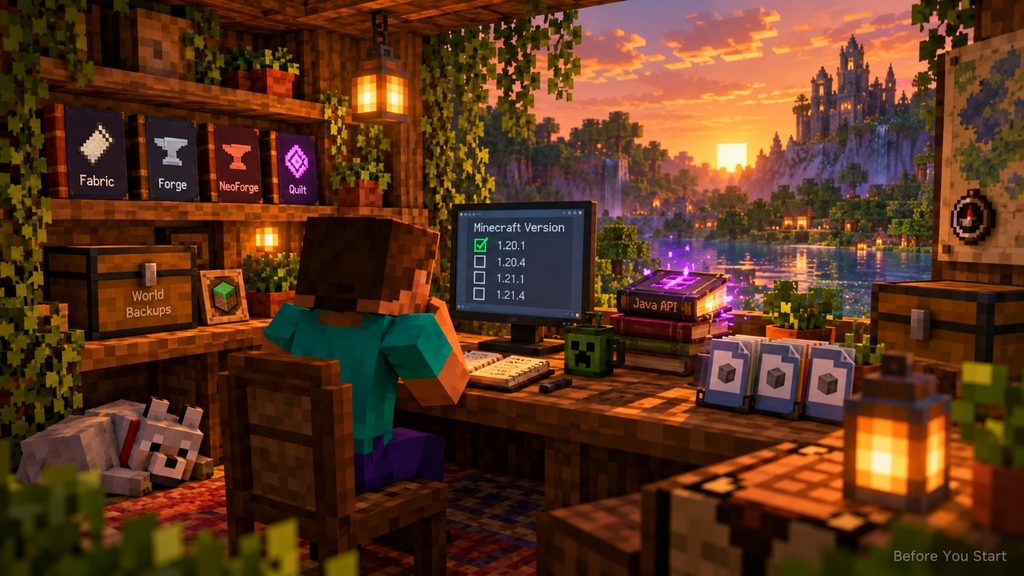
For most beginners in 2026, you should prepare:
- A working Minecraft Java Edition installation
- A Java Development Kit (JDK), not just standard Java runtime
- An IDE if you are coding, such as IntelliJ IDEA or VS Code
- A stable internet connection for downloading templates, loaders, and dependencies
- A clear mod idea, even if it is very small
- A test world or development profile that you can safely break
A good first mod idea is not “make a huge RPG overhaul.” Start smaller. Good first projects include:
- a custom sword
- a new ore
- a food item
- a decorative block
- a simple crafting recipe
- a mob variation
- a quality-of-life utility item
The smaller the first project, the faster you will finish it. That matters because finishing one working mod teaches you more than abandoning five huge ideas.
Also decide your target Minecraft version before you do anything else. Modding support can vary heavily between versions. If you pick a version too early in a release cycle, tools and libraries may still be catching up.
MCreator vs Coding: Which Path Should You Choose?
There are two main beginner routes in 2026: MCreator and coded modding.
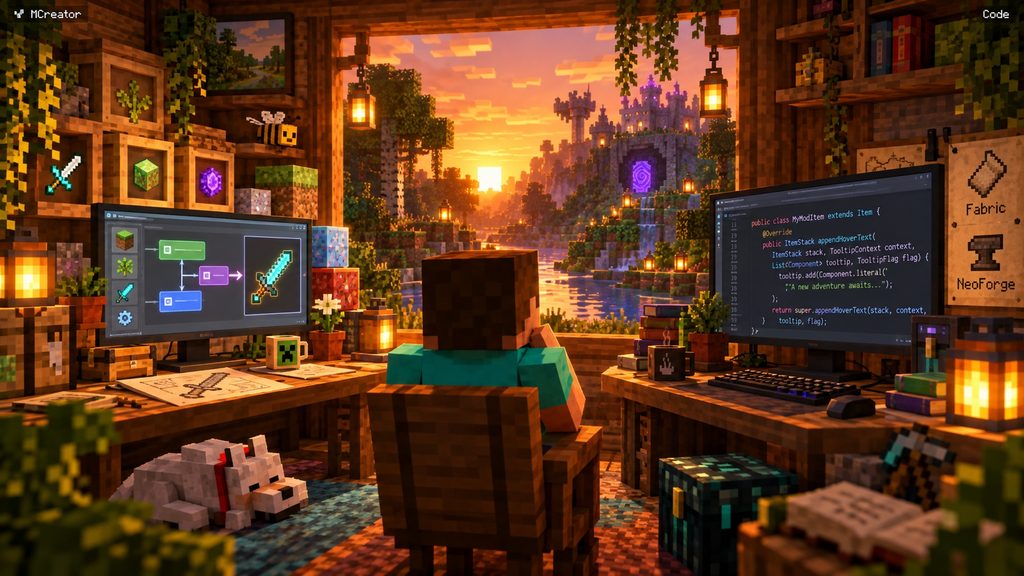
Choose MCreator if:
- you are completely new
- you do not know Java
- you want to make something quickly
- you want a visual interface
- you mainly care about items, blocks, mobs, recipes, and simple gameplay features
Choose Fabric + Java if:
- you want full control
- you want to learn real mod development
- you plan to build more advanced systems later
- you want better long-term understanding
- you are okay learning code step by step
Neither path is “fake.” MCreator is a real entry point and can help beginners understand mod structure. But if you want advanced mechanics, custom systems, cleaner long-term architecture, or deeper compatibility knowledge, coding is the stronger route.
A smart beginner strategy is:
- Use MCreator to understand the logic of Minecraft content creation.
- Move to Fabric + Java once you want more control.
- Build the same type of feature in both systems and compare how they work.
That approach makes the transition easier because you are not learning Minecraft concepts and Java at the same time from scratch.
How to Make a Minecraft Mod Without Coding Using MCreator
If you want the easiest path, MCreator is your best starting point. It gives you a visual workflow where you can create mod elements without writing much or any code manually.
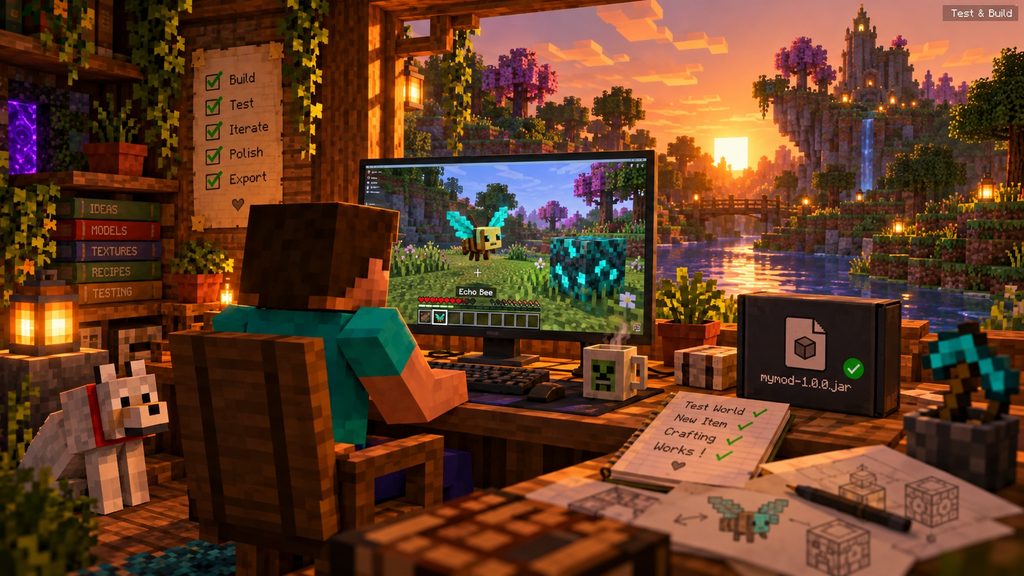
Here is a practical beginner process:
- Install MCreator and set up a new workspace.
- Choose the Minecraft version and supported modding backend.
- Name your project clearly.
- Create your first mod element—usually an item or block.
- Add the name, category, durability, damage, or other properties.
- Upload or create a texture.
- Add a crafting recipe if needed.
- Build and run the mod in the integrated test environment.
A custom sword is a perfect first MCreator project because it teaches the basic flow:
- idea
- texture
- item properties
- recipe
- test
- export
When testing, check:
- Does the item appear in the correct creative tab?
- Is the texture visible?
- Does the recipe work?
- Does it behave correctly in survival?
- Are the values balanced?
MCreator is especially useful for making:
- tools
- weapons
- food
- ores
- plants
- mobs
- armor
- simple procedures and triggers
Its biggest limitation is that complex systems can become harder to manage later. Still, for a first working mod, it is one of the fastest ways to learn the structure of Minecraft modding.
If you finish a custom sword, your next upgrade should be something slightly harder, such as:
- a custom ore that drops a new item
- a new furnace fuel
- a tool effect
- a simple mob drop mechanic
That progression is much better than instantly jumping into world generation or dimension creation.
How to Make a Fabric Mod With Code
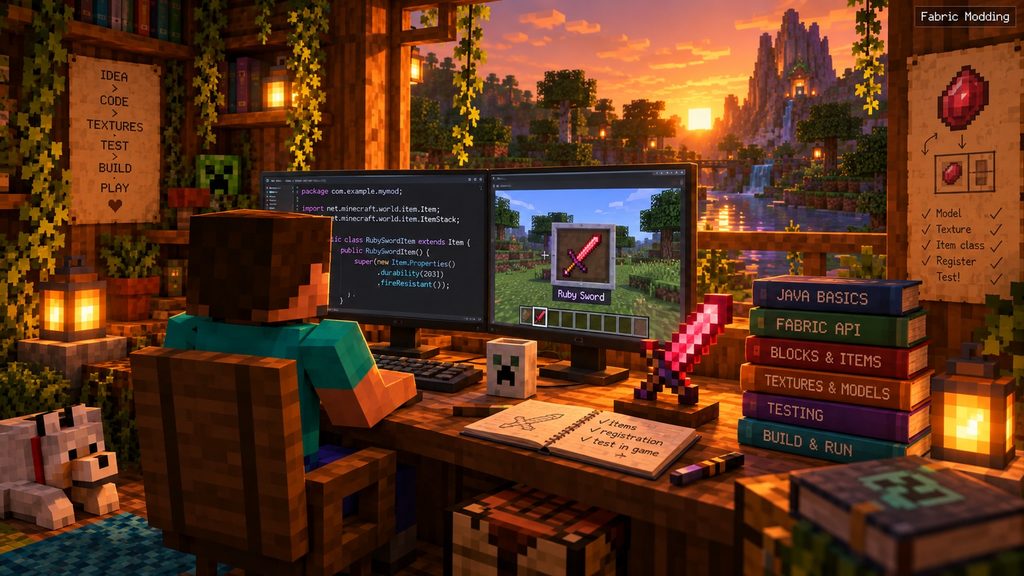
If you want to learn real modding, Fabric is one of the strongest beginner-friendly coding paths in 2026. The usual workflow is: generate project → edit files → create item → register item → add assets → test → build.
Step 1: Generate a Fabric project
Use the Fabric template generator and fill in:
- mod name
- package name
- mod ID
- Minecraft version
Keep your mod ID simple and lowercase.
Step 2: Open the project in your IDE
Once the project is generated, open it in IntelliJ IDEA or another supported IDE and allow Gradle to import everything.
Step 3: Edit the project details
Update the basic metadata files so the mod uses your name, ID, and description rather than template placeholders.
Step 4: Create your first custom item
A custom item is the easiest coded project because it teaches registration, textures, naming, and testing.
The usual process is:
- create the item class or item definition
- register the item in your mod’s registry code
- add a texture PNG
- add the item model JSON
- add the display name in the language file
Step 5: Run the development client
Launch the mod in a dev environment and check whether your item appears in-game.
This route takes longer than MCreator, but it teaches the real structure of modding:
- source code
- assets
- registries
- identifiers
- build configuration
- development testing
Once you can create one working coded item, you can gradually move into:
- blocks
- recipes
- tools
- armor
- custom sounds
- entities
- commands
- particles
- world generation
Do not rush all of that at once. A first Fabric mod should be clean, not huge.
A First-Mod Definition of Done
A beginner project is complete only when it works outside the editor or development client. Use these checkpoints to avoid confusing “the code compiled once” with a usable release.
| Checkpoint | Pass condition | If it fails |
|---|---|---|
| Project setup | The development client opens with your mod loaded | Recheck the JDK, Gradle import, loader, and Minecraft version |
| Content | The item or block has the correct name, texture, properties, and creative access | Check registration, identifiers, asset paths, and language files |
| Gameplay | The recipe or behavior works in a fresh test world | Test one feature at a time and read the latest log |
| Build | A release .jar is produced by the documented build task | Resolve build errors before copying files manually |
| Clean-profile test | The built file loads with only its declared dependencies | Remove undeclared development-only dependencies |
Keep a short change log with the target Minecraft version, loader version, required dependencies, and known limitations. If you share the file, include those details beside the download so players can reproduce your working setup.
How to Test, Build, and Export Your Mod
Making the mod is only half the job. You also need to test it properly and export it in a usable form.
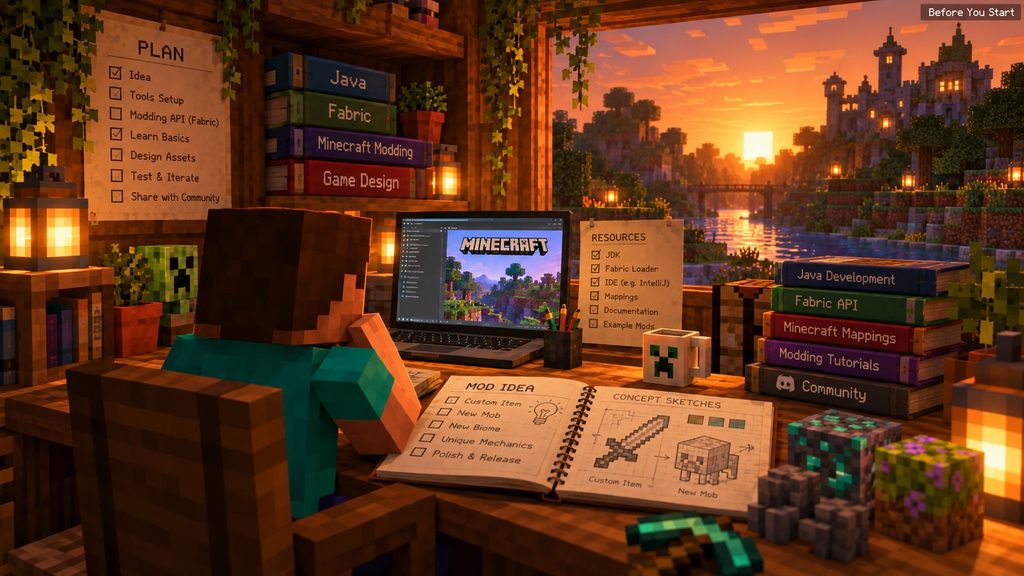
Testing Checklist
When your mod first runs, check:
- Does Minecraft launch?
- Does the mod load in the mod list?
- Does the item, block, or mob appear where expected?
- Are the textures correct?
- Is the recipe functional?
- Does the behavior match the design?
- Does the game crash when you use the feature?
Test in both:
- Creative Mode for quick access
- Survival Mode for real gameplay behavior
After testing, build the mod. In a coding workflow, this usually means running the project’s build task to generate a .jar file. That file is the actual mod package you can install in a modded Minecraft profile.
After Export
Once the mod is built:
- install the correct loader
- put the
.jarinto the rightmodsfolder - launch the matching Minecraft profile
- confirm the mod loads correctly outside the dev environment
If your mod depends on a loader or API, remember that other players need the correct setup too. A mod that works on your machine can still fail for others if they use the wrong version or forget a dependency.
A good habit is to keep a simple release checklist:
- version checked
- file name cleaned up
- description written
- test completed
- crash check done
- backup saved
That saves time later when you update or share the mod.
Common Minecraft Modding Problems and How to Fix Them
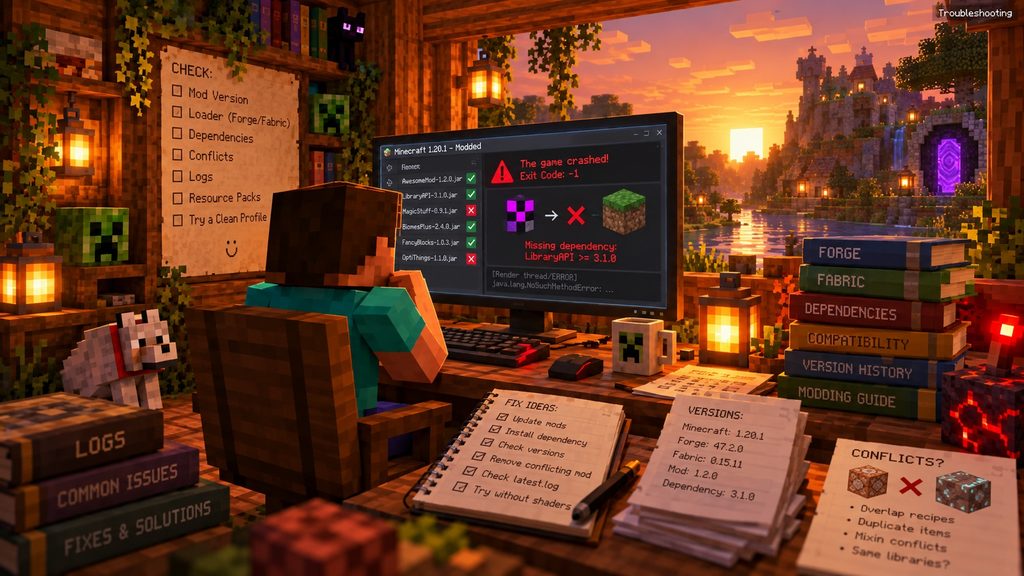
Most modding frustration comes from a few repeated problems. The good news is that they are usually fixable.
1. Wrong Minecraft version
A mod made for one version may not work on another. Always match your project, loader, and test profile to the same target version.
2. Wrong loader
Fabric mods do not automatically work on Forge or NeoForge. MCreator export support can also differ depending on backend choice.
3. Missing dependency
If your mod needs another library or API and it is not present, the game may crash or fail to load the mod.
4. Broken asset paths
If your texture or language files are in the wrong folder or use the wrong ID, the item may appear with a missing texture or incorrect name.
5. Bad mod ID or package setup
In Fabric projects especially, inconsistent names can cause confusion. Keep your naming clean and consistent.
6. Java or Gradle issues
Sometimes the code is fine, but the environment is not. Re-importing the project, refreshing Gradle, or checking the JDK version solves many setup problems.
7. The mod loads but the item does not appear
This usually means the item was not registered correctly, the creative tab setup is missing, or the testing conditions are wrong.
Smart Troubleshooting Method
Use this order:
- read the error message
- check version compatibility
- check dependencies
- test with fewer features enabled
- confirm file paths and names
- use a clean test profile
- rebuild and test again
Do not randomly change ten things at once. Change one thing, test, and then move forward. That is the fastest way to find the actual problem.
Frequently Asked Questions
Is MCreator good for beginners?
Yes. MCreator is one of the easiest ways for beginners to make a Minecraft mod because it removes much of the setup complexity and lets you create items, blocks, and simple mechanics visually.
Do I need to know Java to make a Minecraft mod?
No, not always. You can start with MCreator without deep Java knowledge. But if you want more control and advanced features, learning Java is very helpful.
What is the best first Minecraft mod to make?
A custom item or block is the best first mod. It is simple enough to finish but still teaches textures, naming, registration, and testing.
Should I start with Fabric or MCreator?
Start with MCreator if you want the easiest path. Start with Fabric if you want to learn real coding and build stronger long-term modding skills.
Why does my Minecraft mod crash?
The most common causes are version mismatch, wrong loader, missing dependency, bad file paths, or a setup problem in Java/Gradle. Check those first before rewriting your whole project.
Final Recommendation
If your goal is simply to make your first working Minecraft mod in 2026, start small and finish one project. A custom sword, block, or ore is enough. Use MCreator if you want a fast no-code path, or use Fabric + Java if you want deeper knowledge and more control. The biggest beginner mistake is not lack of skill—it is trying to build a giant mod before learning the basic loop of idea → create → test → fix → export.
Official sources
- Fabric Developer Guides — official setup, project structure, development, and build documentation.
- Fabric: Creating a Project — official instructions for generating a starter Fabric mod.
- Fabric: Installing Mods — official player-side installation and compatibility guidance.
- MCreator: How to Make Minecraft Mods — official no-code workflow and generator guidance.
- Microsoft Learn: Getting Started with Bedrock Add-Ons — official Bedrock customization workflow.
Continue Exploring
Minecraft 26.3 Mods Not Working? Fix Fabric, Forge & NeoForge
Fix Minecraft 26.3 mods that will not load on Fabric, Forge or NeoForge by checking Java 25, loader versions, dependencies, instance folders and logs.
Minecraft Vulkan vs OpenGL: Which Gives Better FPS? (26.4 Guide)
Compare Vulkan and OpenGL in Minecraft Java 26.4, test average FPS and 1% lows, troubleshoot stutter and choose the best renderer for your PC.
How to Find Ice Caves in Minecraft 26.4 (Location, Y-Level & New Features)
Find Ice Caves beneath colder Overworld biomes in Minecraft 26.4 test builds. This guide covers location clues, the unknown Y-level, Ice Crystals, Frostbites, and safe exploration.