How to Create a Minecraft Server in 2026: Java & Bedrock Guide
Servers
By GamerCubic Editorial Team
Last checked: September 20, 2026
Version checked: Minecraft Java 26.3 stable; Bedrock 26.51 stable hotfix; current official server packages
Creating your own Minecraft server gives you a private multiplayer world where you control who can join, the game rules, difficulty, world settings, and how long the world stays online. For Minecraft Java Edition, you can download Mojang’s official server .jar and host it on your own computer. Bedrock Edition uses separate Bedrock Dedicated Server software for Windows or Linux.
The setup sounds complicated because several things have to match: your Minecraft edition, game version, Java version, firewall, router settings, and player addresses. The easiest approach is to get the server working locally first, then test another device on your home network, and only after that configure internet access for friends.
Quick Takeaway: Download the server software for your Minecraft edition, run it in its own folder, configure player access, test it locally, and only then open the required network port for trusted friends. ✅
Quick Answer
To create a Minecraft server, first choose Java or Bedrock Edition. Java requires Mojang’s server .jar and compatible Java software, while Bedrock uses the separate Bedrock Dedicated Server package. Start the server, configure its properties, add trusted players to an allowlist, and test the server locally. If friends need to connect over the internet, you may also need firewall and router configuration.
| Server Type | Software | Default Game Port |
|---|---|---|
| Java Edition | Official server .jar | TCP 25565 |
| Bedrock Edition | Bedrock Dedicated Server | UDP 19132 |
| Minecraft Realms | Mojang-managed hosting | No home port forwarding |
1. Choose Your Edition and Hosting Method
Before downloading anything, decide whether you are creating a Java Edition server or Bedrock Edition server.
A normal Java server is designed for Minecraft Java Edition players. Bedrock has its own dedicated server software and is intended for Bedrock clients. They do not become cross-compatible simply because both servers use the same world concept or IP address.
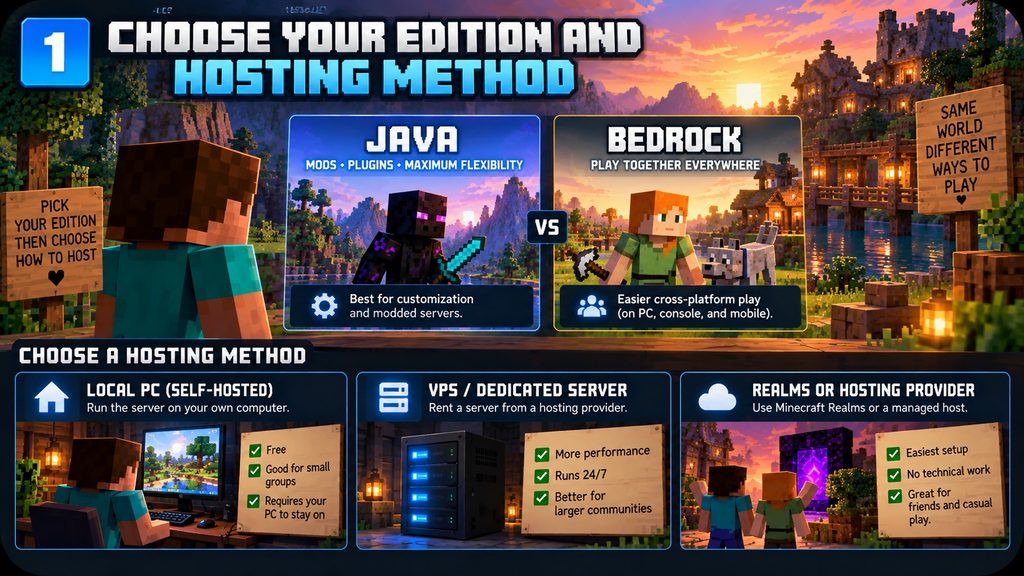
You also need to decide where the server will run.
Self-hosted server
A self-hosted server runs on your own PC or another computer in your home.
This is best when:
- you are playing with a small group of friends
- you want complete control
- you do not mind configuring the server yourself
- you want to avoid a monthly hosting bill
The downside is that your server computer must remain powered on whenever other players want to join.
Dedicated computer or VPS
A dedicated machine can run Minecraft without competing with your gaming PC for CPU and memory.
A VPS or rented server gives you similar benefits without keeping hardware at home. This can be useful for communities that need better uptime or do not want to expose a home connection.
Minecraft Realms
Realms is the simpler official alternative. Mojang manages the hosting, so you do not need to forward ports or keep a computer running.
Realms gives you less low-level control than a self-hosted server, but for a small private group it can be considerably easier.
GamerCubic Tip: For your first server, start with vanilla Minecraft. Make sure everyone can connect before adding mods, plugins, custom proxies, or complicated server software.
2. How to Create a Minecraft Java Server
Minecraft Java Edition gives server owners the most control, but its setup has a few more steps.
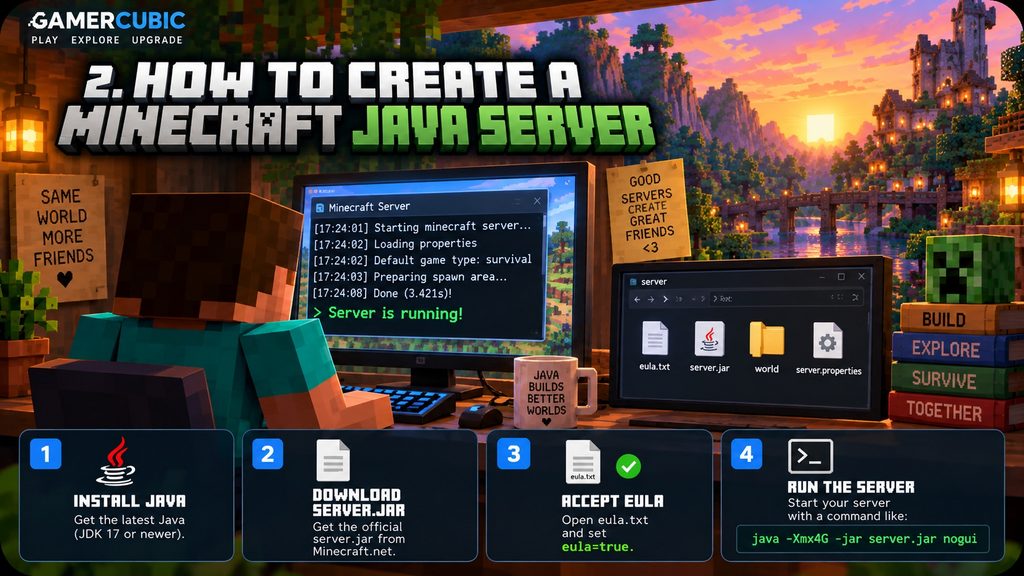
As of modern Minecraft Java releases in 2026, the game requires Java 25. If you are creating a server for an older Minecraft version, that version may require a different Java release.
Step 1: Install Java
Install a compatible 64-bit Java distribution.
After installation, open Command Prompt, PowerShell, Terminal, or your preferred shell and enter:
java -version
The result should show the Java version being used.
If the terminal says that java is not recognized, Java may not be installed correctly or its executable may not be available through your system PATH.
Step 2: Download the official Minecraft server
Download the Java Edition server file from Minecraft’s official server-download page.
Create a separate folder such as:
C:\MinecraftServer
or:
~/MinecraftServer
Move the downloaded server file into that folder.
For simpler commands, rename it:
server.jar
On Windows, make sure file extensions are visible so you do not accidentally create a file called server.jar.jar.
Step 3: Start the server for the first time
Open a terminal inside the server folder and run:
java -Xms1G -Xmx4G -jar server.jar nogui
This example starts Java with 1 GB of initial heap and allows it to use up to 4 GB.
Four gigabytes is only a practical starting point—not a universal requirement. A tiny private server may need less, while heavily explored worlds, larger player counts, or modded servers may need more.
Do not assign all of your computer’s RAM to Minecraft. Windows, Linux, Java itself, and any other programs still need memory.
Step 4: Accept the EULA
The first launch generates Minecraft server files.
The server may stop and create:
eula.txt
Open that file.
Read the Minecraft EULA linked inside it. If you agree, change:
eula=false
to:
eula=true
Save the file.
Run your server command again.
The server should now begin generating the world and eventually report that startup is complete.
Step 5: Test the server locally
Launch Minecraft Java Edition using the same game version as the server.
Go to:
Multiplayer → Add Server
If you are playing on the same PC as the server, try:
localhost
If that works, the Minecraft server software itself is running correctly.
To shut down the server safely, type:
stop
into the server console.
Wait for the world to save before closing the window.
3. Configure Server Settings and Player Access
Once the server launches, stop it and open:
server.properties
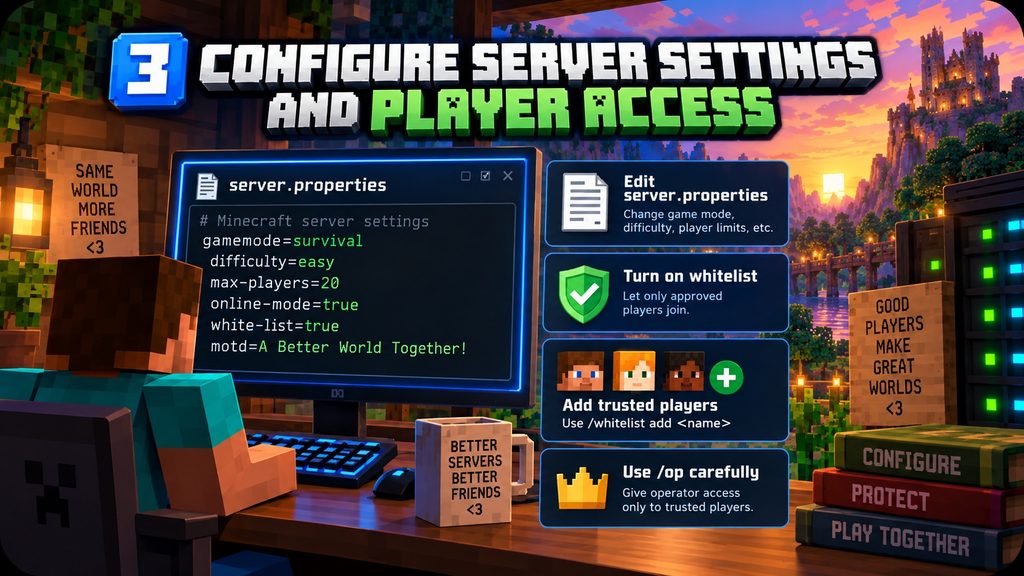
This file controls many of the basic server rules.
For a small private survival server, these are useful settings to review:
| Setting | Example | Purpose |
|---|---|---|
gamemode | survival | Default player game mode |
difficulty | normal | World difficulty |
max-players | 8 | Maximum concurrent players |
online-mode | true | Authenticates player accounts |
white-list | true | Restricts access |
server-ip | leave blank | Lets the server bind normally |
Do not put your public IP into server-ip.
For most home setups, leaving this field blank is correct.
Enable the whitelist
If your server is just for friends, a whitelist is one of the most important settings.
Start the server and use its console:
whitelist add YourUsername
Then:
whitelist add FriendUsername
And:
whitelist on
Only approved users should then be able to join.
Give yourself operator permissions
Server operators can use powerful commands.
To give yourself operator permissions, enter:
op YourUsername
Do not make every player an operator.
Regular players do not need administrator privileges simply to build, explore, or survive.
Useful administrator commands include:
/kick
/ban
/difficulty
/gamemode
and other server-management commands.
For a private server, the basic principle should be:
authenticate accounts + use a whitelist + limit operator access.
4. How to Let Friends Join Your Minecraft Server
There are three connection stages you should test.
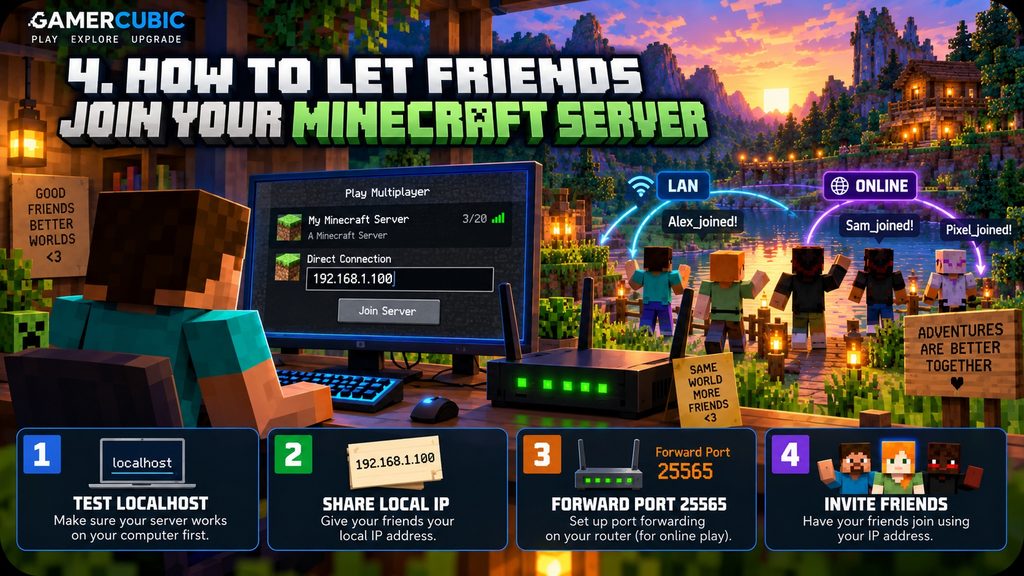
Stage 1: Same computer
For Java, use:
localhost
This confirms that the server process itself works.
Stage 2: Same home network
Find the private IPv4 address of the server computer.
On Windows, you can run:
ipconfig
You may see an address similar to:
192.168.1.50
Your actual address may be different.
A friend connected to the same router can try that private IP.
If the connection fails, check your firewall before touching the router.
Stage 3: Friends outside your network
For internet players, your router normally has to send Minecraft traffic to your server computer.
This is commonly called port forwarding.
For a normal Java server, the default game port is:
TCP 25565
The basic setup is:
- Give the server computer a stable local IP or DHCP reservation.
- Allow TCP 25565 through the computer firewall.
- Log into your router.
- Find Port Forwarding, Virtual Server, or NAT rules.
- Forward external TCP 25565 to your server computer’s private IP on port 25565.
- Save the rule.
- Have a trusted friend test from a different internet connection.
Do not test your public IP only from inside your own Wi-Fi and assume the result applies externally. Some routers handle that differently.
What if port forwarding does not work?
Your internet provider may use CGNAT, which can prevent ordinary inbound IPv4 connections.
If your router’s WAN address does not match the public IPv4 address visible on the internet, CGNAT or double NAT may be involved.
Possible solutions include:
- asking your ISP for a public IPv4 address
- correctly configuring both routers in a double-NAT setup
- using a VPS
- choosing a Minecraft hosting provider
- using Minecraft Realms
GamerCubic Tip: Never disable your firewall or expose your entire PC using DMZ mode just to make Minecraft work. Open only what you actually need.
Also remember that sharing a home public IP is different from sharing a normal Minecraft username. Only give it to people you trust.
5. How to Create a Minecraft Bedrock Server
Bedrock Dedicated Server is separate from Java’s server.jar.
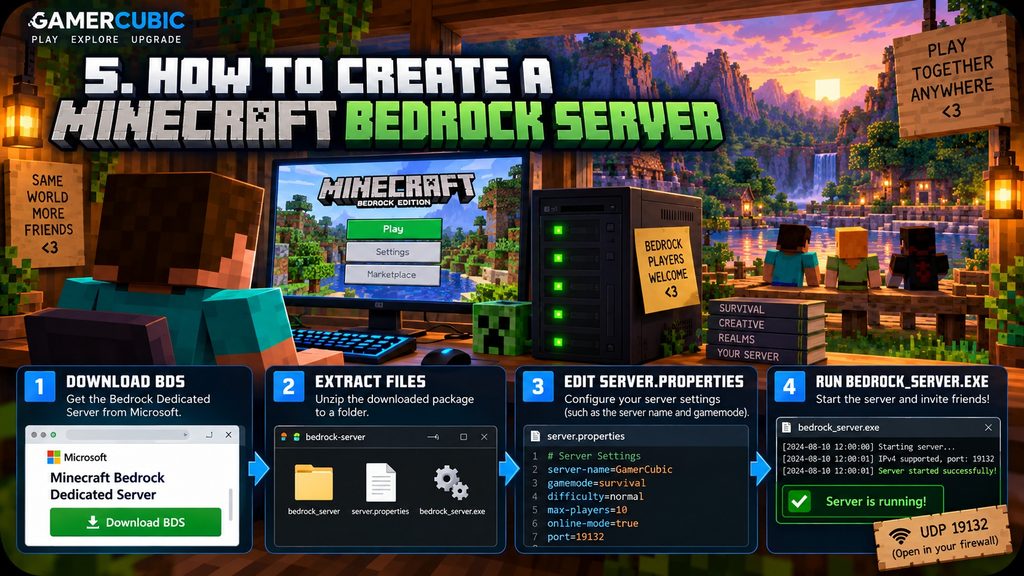
Mojang provides official packages for supported Windows and Ubuntu systems.
Step 1: Download Bedrock Dedicated Server
Download the current Bedrock server package from Minecraft’s official website.
Mojang currently lists support for:
- supported 64-bit Windows environments
- Ubuntu 22.04 LTS or later for the official Linux version
Always check the official page before installing because requirements can change.
Step 2: Extract the server
Create an empty folder.
Extract the Bedrock Dedicated Server package into it.
Unlike Java, you do not start the server through a Java .jar.
On Windows, the executable is typically:
bedrock_server.exe
Step 3: Configure server.properties
Open:
server.properties
Important options include:
server-namegamemodedifficultymax-playersonline-modeallow-listserver-port
For a private server, keep account authentication enabled and consider enabling the allowlist.
Step 4: Start the server
Run the Bedrock server executable.
It will create or load the world and begin listening for connections.
For IPv4, Bedrock’s normal default port is:
UDP 19132
Its default IPv6 port is:
19133
Do not treat Java’s TCP 25565 and Bedrock’s UDP 19132 as interchangeable.
Step 5: Let players join
Mojang’s current Bedrock Dedicated Server documentation describes cross-platform Bedrock support, including Windows, mobile, and console platforms.
The exact menu used to enter or access a server can differ by platform, so players should use the server controls available on their current Bedrock client.
For remote internet connections, your firewall and router may need to permit and forward the Bedrock UDP port to the server machine.
Test locally first.
If local connections work and remote connections do not, the problem is probably network-related rather than world-related.
6. Why Is My Minecraft Server Not Working?
Minecraft server problems become much easier to fix when you identify which stage fails.
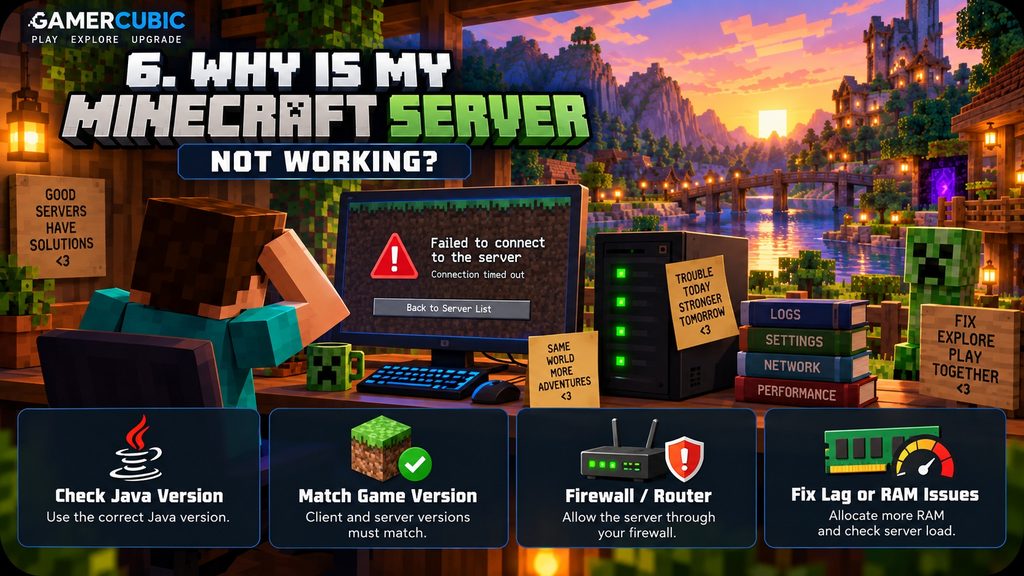
| Problem | Check First |
|---|---|
java not recognized | Java installation / PATH |
UnsupportedClassVersionError | Java version |
Cannot access server.jar | Filename and current folder |
| Outdated server/client | Minecraft versions |
| Not whitelisted | Whitelist entry |
| Works locally but not online | Firewall / router / CGNAT |
| Cannot bind address | server-ip configuration |
| High lag | CPU, RAM, view distance, network |
Java server will not start
Check:
java -version
Then check the exact .jar filename.
Your command must reference the real server file.
Friend gets an incompatible version error
The client and server need matching versions unless specialized server software explicitly provides another compatibility layer.
If the server runs Java 26.3 or Bedrock 26.51, a player using a different incompatible release may be rejected. Check the current Minecraft version guide before downloading new server files.
Localhost works but friends cannot join
That tells you something important:
the server itself is probably working.
Now focus on:
- Windows/Linux firewall
- local IP address
- router forwarding
- public IP address
- CGNAT
- incorrect port
Do not reinstall Minecraft because port forwarding failed.
Server feels laggy
Performance can depend on:
- CPU speed
- available RAM
- number of players
- world generation
- farms
- entities
- simulation distance
- view distance
- mods or plugins
- upload bandwidth
Avoid assuming that simply adding enormous amounts of RAM will fix every performance problem.
If lag happens mostly when players explore new areas, world generation may be the heavier workload.
Reduce settings gradually and test again.
7. Back Up, Update, and Protect Your Server
A server is not finished once players can join.
The world now needs protection.
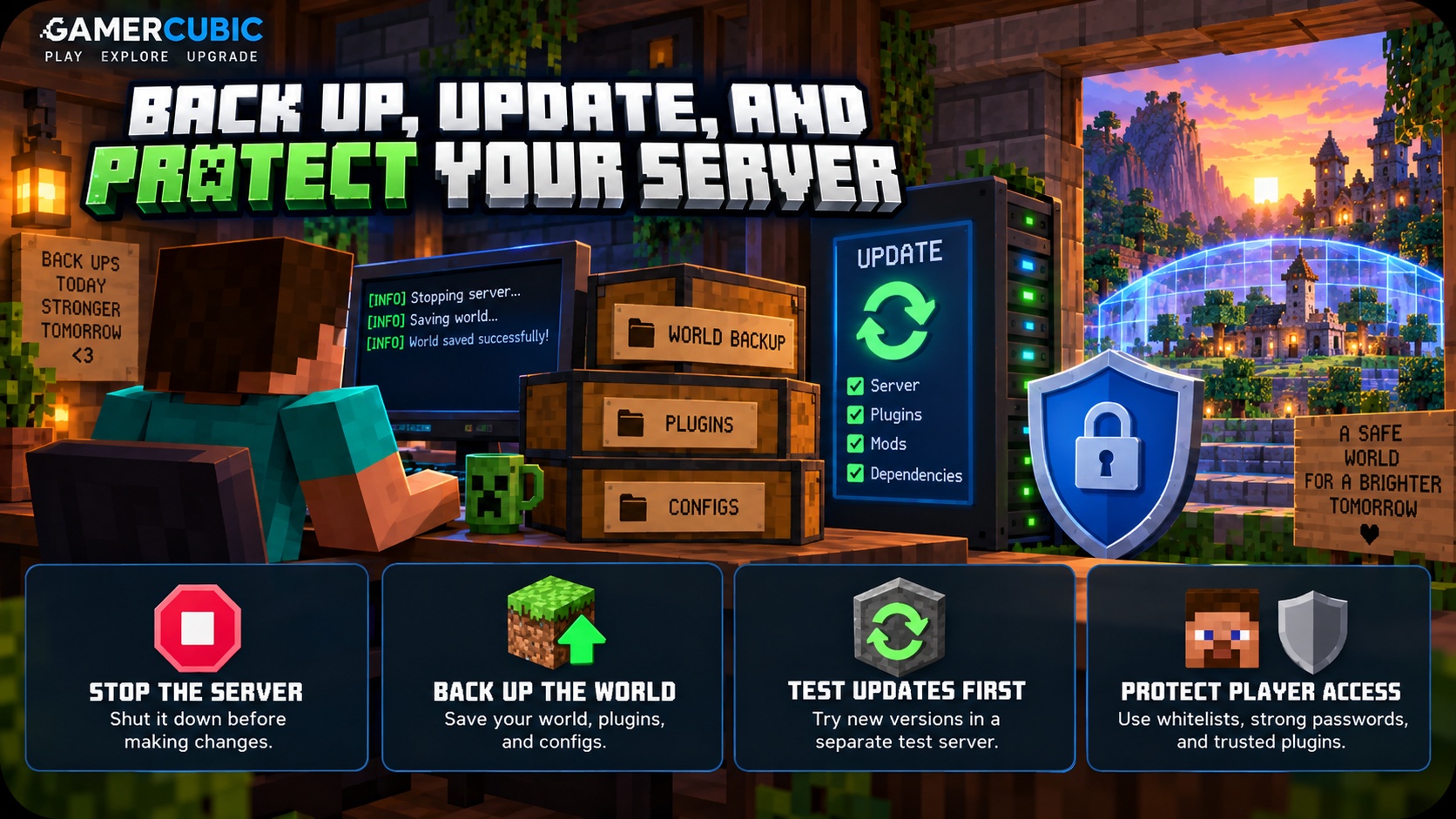
Back up your world
The simplest safe backup method is:
- Tell players the server is shutting down.
- Type
stop. - Wait for the process to close.
- Copy the entire server folder.
- Store it in a dated backup folder.
Example:
MinecraftServer-2026-09-14
Keeping the complete folder is useful because it preserves more than the world—it can also retain configuration and player-access files.
Keep at least one backup somewhere other than the server drive.
A backup on the same failing SSD is not much protection.
Back up before updating
Minecraft Java 26.3 is now the stable Wilderness Bound release, while Bedrock 26.51 is the current stable hotfix checked for this guide. Confirm the latest numbers in our current Minecraft version guide before updating a production server.
For a real long-term server, do not rush production worlds onto testing releases.
Before updating:
- stop the server
- create a backup
- confirm the Java requirement
- check mods/plugins if used
- copy the server to a test folder
- test the new version there first
Never assume a world upgraded to a newer Minecraft release can safely be downgraded afterward.
Keep access controlled
Use:
online-mode=true- whitelist/allowlist for private servers
- strong account security
- limited operator permissions
- current operating-system security updates
Do not expose unrelated remote-management ports.
If you eventually turn a private server into a public community, consider moving it from your home PC to professional hosting or a properly secured VPS.
That separates your home connection from a public service and gives you more room for monitoring, backups, uptime, and moderation.
Frequently Asked Questions
Can I create a Minecraft server for free?
Yes. Mojang provides the official Java and Bedrock dedicated server software for free. Self-hosting can still cost money through electricity, internet service, and hardware. Minecraft Realms and third-party hosting are paid alternatives.
Does my computer have to stay on?
Yes, if the Minecraft server is running on that computer. Friends cannot connect when the host computer is shut down or the server process is stopped.
Can Java and Bedrock players join the same server?
Not with the standard vanilla server setups described here. Java and Bedrock use separate multiplayer server systems. Third-party cross-play solutions exist, but they require additional setup and should be treated as a separate configuration.
Do I need port forwarding if my friends are in the same house?
Normally no. Devices on the same local network can usually connect using the server computer’s private IP address. Your firewall must still permit the traffic, and some guest Wi-Fi networks block devices from communicating with each other.
Can I use my existing Minecraft world?
Yes, if the world is compatible with the same edition and server version. Back it up first, stop the server, place the world in the appropriate server location, and ensure the configured world name matches.
Final Recommendation
The easiest way to create a Minecraft server is to keep the first setup simple. Choose Java or Bedrock, use Mojang’s official server software, make the server work locally, configure an allowlist, and then test your home network before setting up internet access. Do not add mods, plugins, proxies, or complicated networking until the vanilla server works reliably.
Most importantly, create backups before changing versions or experimenting with server files. A small, stable Minecraft server with a handful of trusted players is a much better starting point than an overcomplicated server you cannot troubleshoot.
Official sources
- Minecraft: Java Edition server download — Mojang’s official server software and setup notes.
- Minecraft Bedrock Dedicated Server download — official downloads and supported-system requirements.
- How to play on a Minecraft server — official instructions for Java and Bedrock players.
- Minecraft EULA — the terms that apply when downloading and operating the server software.
Continue Exploring
Minecraft 26.3 Mods Not Working? Fix Fabric, Forge & NeoForge
Fix Minecraft 26.3 mods that will not load on Fabric, Forge or NeoForge by checking Java 25, loader versions, dependencies, instance folders and logs.
Minecraft Vulkan vs OpenGL: Which Gives Better FPS? (26.4 Guide)
Compare Vulkan and OpenGL in Minecraft Java 26.4, test average FPS and 1% lows, troubleshoot stutter and choose the best renderer for your PC.
How to Find Ice Caves in Minecraft 26.4 (Location, Y-Level & New Features)
Find Ice Caves beneath colder Overworld biomes in Minecraft 26.4 test builds. This guide covers location clues, the unknown Y-level, Ice Crystals, Frostbites, and safe exploration.