Minecraft Seed Not Working or Showing the Wrong World? Fix Java & Bedrock Seeds
Not
Quick answer: A Minecraft seed not working or showing the wrong world is usually caused by mismatched seed text, edition, version, world type, or coordinates. Check those five details in that order. Java and Bedrock can share broad terrain, but structures, spawn placement, decorators, and some caves may differ. An updated world can also contain old chunks beside newly generated terrain.
Accuracy scope — checked November 8, 2026: This guide covers current Java and Bedrock behavior, including Java 26.3 and Bedrock 26.62. It also applies to most older releases, but Snapshot, Preview, modded, converted, and custom-server worlds need extra caution. The illustrations explain the checks; they are not screenshots of reproduced seeds.
Do not delete a world because the first view looks unfamiliar. Back it up, confirm the actual seed, and compare a known coordinate before deciding the seed failed. If you are following one of GamerCubic’s seed lists, keep the article’s edition, reported build, spawn notes, and structure coordinates together.
Minecraft Seed Fixes at a Glance
| Symptom | Likely cause | Best first check |
|---|---|---|
| The entire landscape is different | Wrong seed, edition, version, or world type | Copy the seed again and match every creation setting |
| Mountains match but villages do not | Java and Bedrock structure differences | Use coordinates for your edition |
| The biome exists but is not at spawn | Spawn variation or the article lists another location | Travel to the reported X and Z coordinates |
| Old base terrain differs from a current seed map | The chunks were generated on an older version | Select the version that originally generated that area |
| Only the server is wrong | An existing world folder or custom generator is loading | Verify the server world name, seed, software, and plugins |
| The seed map shows a missing structure | The marker is approximate or the attempt failed placement | Search the surrounding chunk and confirm map support |
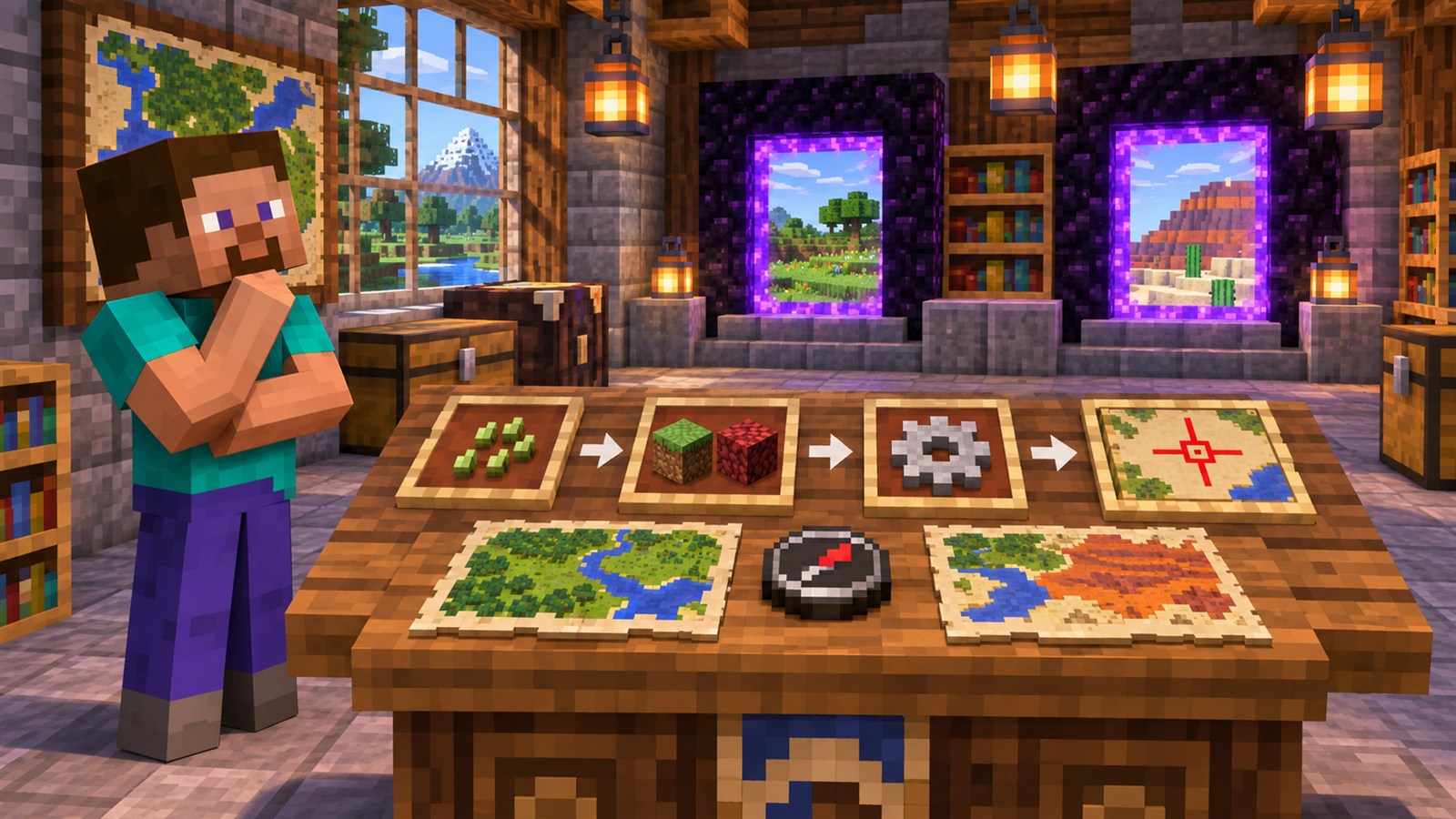
1. Copy the Exact Seed
A seed is the input Minecraft uses when creating a world. One missing digit, an omitted minus sign, or an accidental space can create a completely unrelated result. Copy long numeric seeds as plain text: do not insert commas, shorten the number, or treat the leading minus sign as punctuation.
Text seeds need even more care. Minecraft converts words into a numeric value, so capitalization and extra characters matter. Example, example, and example should not be assumed to represent the same world. The Minecraft Wiki world-seed reference explains how numeric and text inputs are used by generation.
When copying from a video description or social post, paste the seed into a plain text field first. Confirm every digit against the source, then paste it into Minecraft’s seed box. If the source never states an edition, version, or coordinates, treat the seed as an exploration lead rather than a guaranteed match.
2. Match Java or Bedrock Edition
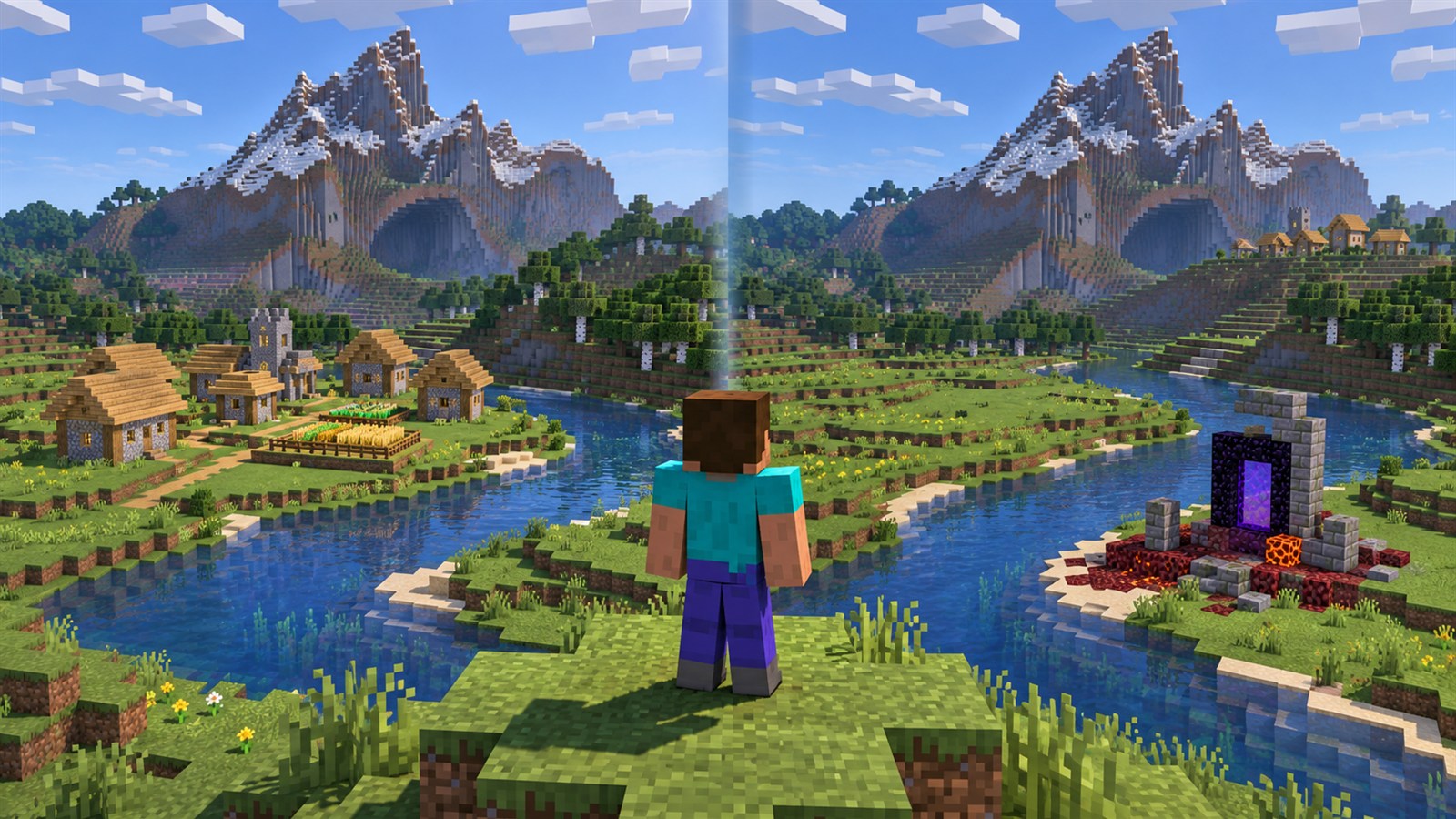
A Java seed entered into modern Bedrock may produce recognizable mountains, rivers, and biome regions, but that does not guarantee the same village, mansion, temple, portal, cave detail, or starting position. Microsoft’s terrain-parity guidance describes shared landscape generation, while the world-seed documentation distinguishes terrain from edition-sensitive structures and features.
Java Edition runs from the Java launcher on Windows, macOS, and Linux. The edition used on consoles, phones, tablets, and the Minecraft for Windows app is Bedrock. If an article says “Java 26.3,” do not follow its structure coordinates as verified Bedrock 26.62 locations unless the author separately checked them.
This explains the classic partial match: the mountain looks correct, but the expected village is absent or appears elsewhere. The seed may be working; the structure instructions may belong to the other edition.
3. Use the Version That Generated the Chunks
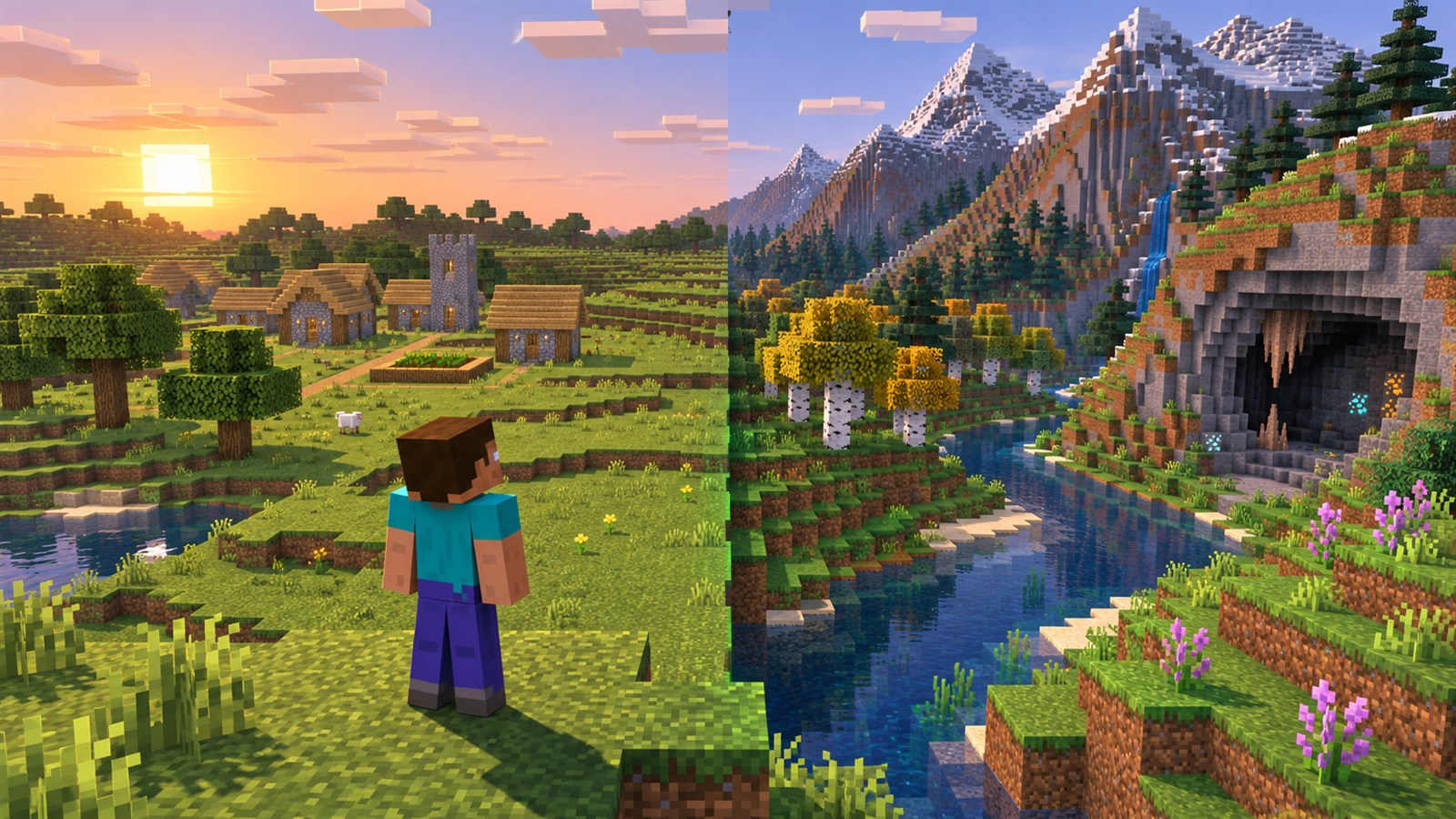
World generation changes over time. New biomes, structures, terrain rules, and placement logic can make the same seed look different on another version. The world-seed history documents generation-breaking changes, while current seed-map troubleshooting guidance recommends selecting the version that generated the specific chunks you are checking.
An upgraded survival world is often a mixture. Land around your base keeps the layout created when you first explored it. Travel far enough into untouched territory and the game uses the newer generator. That can create visible borders, new biomes, or structures that only appear in fresh chunks.
Snapshot and Preview worlds are especially sensitive because generation can change between test builds. Match the complete label—not only “26.4”—and create a disposable test world before opening an important save. Use the latest Minecraft version guide to separate stable releases from current testing builds.
4. Check Spawn and the Listed Coordinates
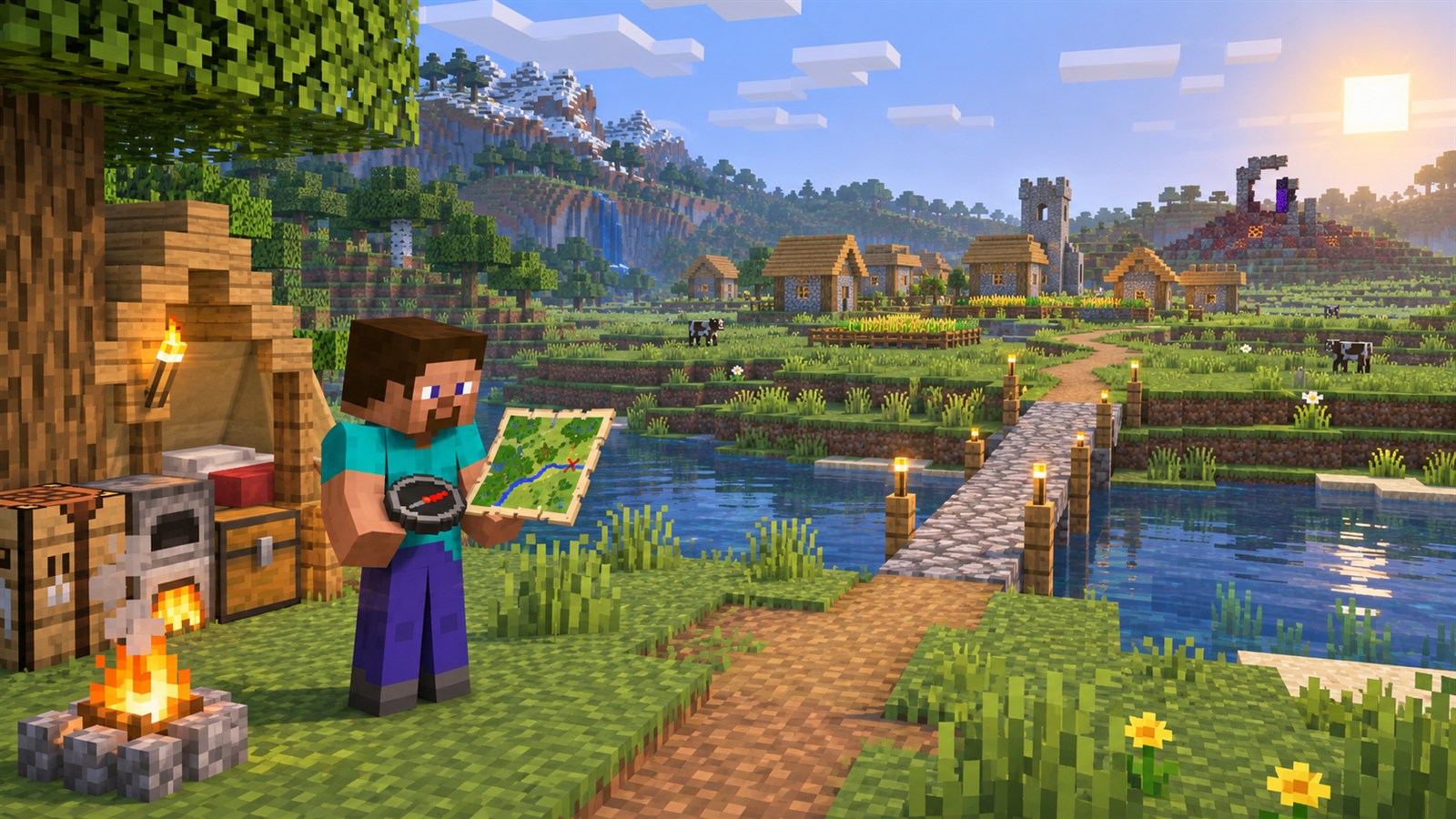
“Near spawn” does not always mean “visible when the world loads.” A biome may begin a few hundred blocks away, and a structure list may use coordinates measured from an estimated spawn point or from world origin. Read whether the source says at spawn, near spawn, or gives an exact X and Z.
On Java, open the debug screen to read coordinates or use normal coordinate displays supplied by your server. On Bedrock, enable Show Coordinates in the world settings when available. Travel to the source’s location before judging the seed. For underground structures, X and Z may only bring you above the target; the missing Y value means you still need to search vertically.
Spawn itself is also not the same as X: 0, Z: 0. Minecraft chooses a suitable starting area near the calculated world spawn. Beds, respawn anchors, commands, maps, servers, and imported worlds can move where a player appears without changing the underlying seed.
5. Check World Type, Mods, Add-Ons and Server Settings
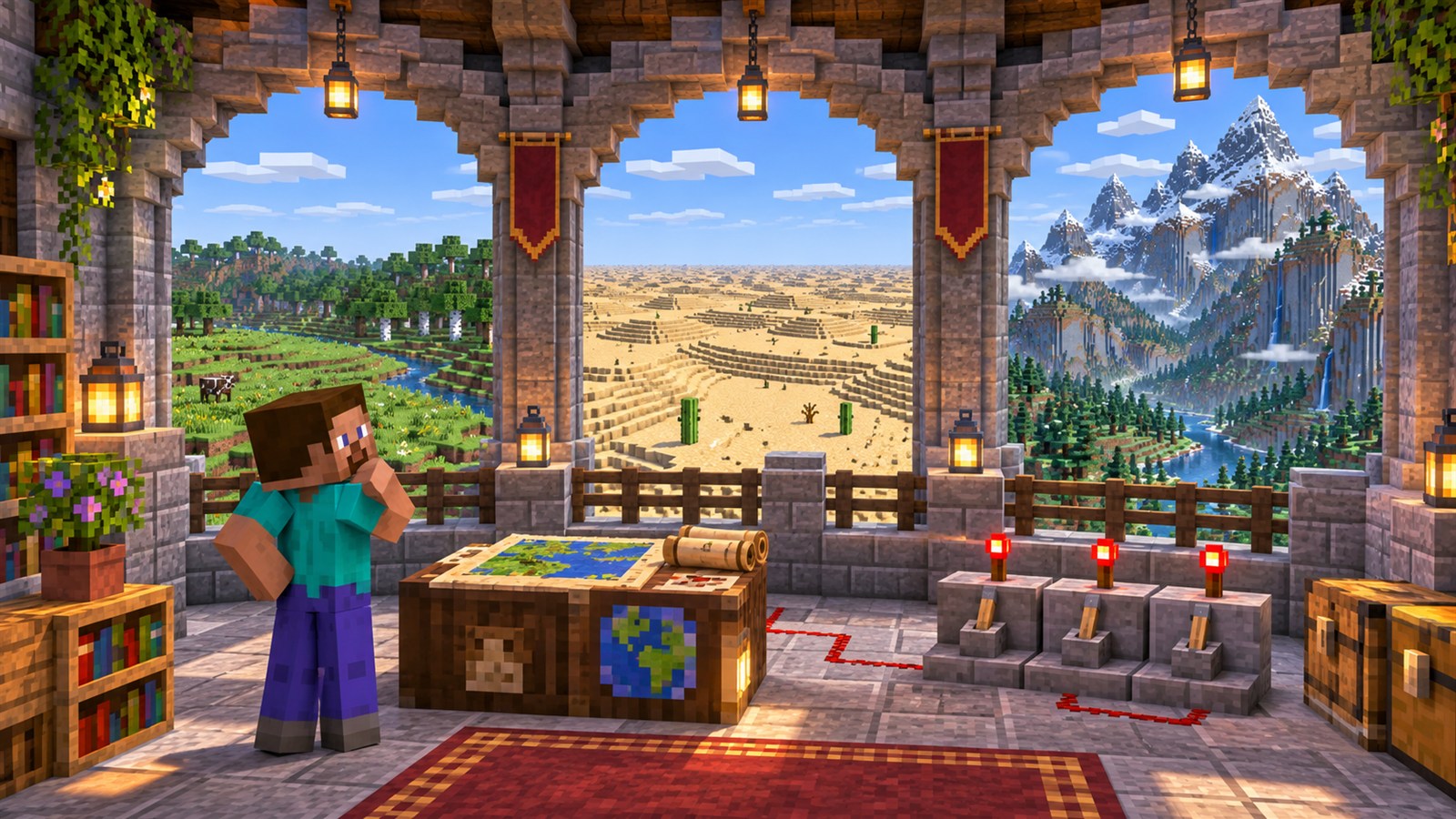
A seed only reproduces correctly when the generator settings match. Java’s Large Biomes preset does not simply enlarge a normal world; modern Large Biomes generation can place biomes differently from Default. Amplified, Superflat, single-biome presets, experimental data packs, and modded dimensions create other results.
Temporarily test the seed in an unmodified Default world. Remove world-generation data packs and disable generator mods, then create a new test world instead of reopening the affected save. Normal resource packs change textures, not terrain, but behavior packs and add-ons can alter Bedrock generation.
Servers add another layer. The level-seed property supplies a seed when a server generates a world, but changing that line does not rebuild an existing world folder. Confirm the server is creating a fresh folder and check whether Paper, Spigot, Fabric, NeoForge, plugins, proxies, or custom world presets influence generation. Never delete the current server world without a verified backup.
6. Understand Seed-Map Limitations
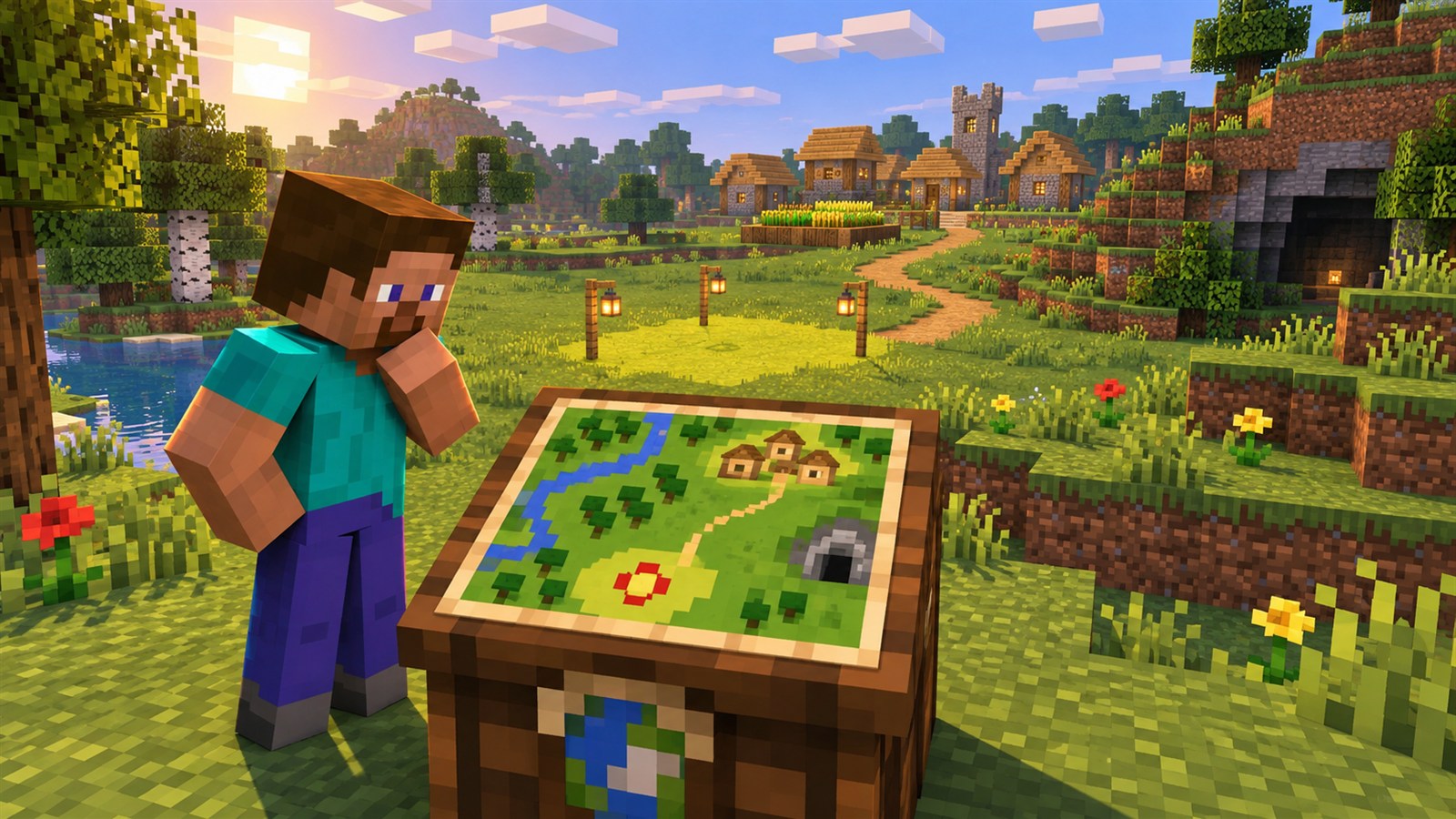
A seed map is a prediction tool, not a screenshot of your save. First match its seed, edition, version, dimension, and world type. Chunkbase’s troubleshooting notes also warn that mods, behavior packs, old chunks, coastlines, and unsupported features can produce mismatches.
Structure markers may identify a starting chunk rather than the center or entrance. Villages can spread away from their marker, buried structures require vertical searching, and some generation attempts fail because the surrounding terrain is unsuitable. Bedrock predictions can be less exact for some structures and at extreme distances.
Check the dimension selector too. Nether coordinates are measured inside the Nether, not on the Overworld surface. If a map still disagrees after every input matches, reproduce the problem in a fresh unmodified world and report the seed, edition, full version, dimension, and coordinates to the map provider.
How to Find Your Real World Seed
Java singleplayer: open chat and run /seed, then copy the returned value. Minecraft Help also provides an official Java world-seed copying guide. On multiplayer, the command may require permission; ask the server owner instead of using unofficial seed-cracking downloads.
Bedrock: open the world’s settings and look for the Seed field under the game or advanced settings. The official Bedrock Seed Picker FAQ shows where seeds are entered for a new world. Realm members and server players may not see the owner’s seed.
If you are recreating a Bedrock save, remember that a seed restores the natural starting world—not buildings, inventory, explored chunks, or player progress. Mojang’s Bedrock restore and recreate guidance separates a backup restoration from creating a fresh world with the same seed.
How to Test a Shared Seed Safely
- Record the exact seed, edition, full version, world type, and claimed coordinates.
- Create a separate world using Default generation and the matching stable release or test build.
- Paste the seed and recheck the minus sign and every digit before creating the world.
- Load without world-generation mods, data packs, behavior packs, or custom server software.
- Check the spawn biome, then travel or teleport to the source coordinates.
- Compare broad terrain first, then edition-sensitive structures and smaller decorators.
- Only start a permanent survival world after the features important to you are confirmed.
For ready-made worlds with explicit edition and verification notes, compare GamerCubic’s Dappled Forest seeds, survival island seeds, and village island seeds.
Java vs Bedrock Seed Differences
| Detail | Java Edition | Bedrock Edition |
|---|---|---|
| Broad modern terrain | Can resemble Bedrock for the same numeric seed | Can resemble Java for the same numeric seed |
| Villages and structures | Use Java-specific coordinates | May move, change type, or be absent |
| Finding the seed | /seed in singleplayer; permissions may apply on servers |
World settings for owners; access may be limited on Realms or servers |
| World presets | Default, Large Biomes, Amplified, data packs and mods matter | World settings, experiments, templates, add-ons and behavior packs matter |
| Reliable reproduction | Match seed, Java version, preset and generated-chunk age | Match seed, Bedrock build, settings and generated-chunk age |
Frequently Asked Questions
Why does the same Minecraft seed create a different world?
The edition, version, generator preset, or seed text probably differs. Updates can change world generation, while Java and Bedrock may keep similar terrain but place structures differently.
Why is the village missing even though the terrain matches?
The coordinates may belong to the other edition, or the structure attempt may have failed its terrain checks. Search nearby, confirm the version, and use an edition-aware map.
Will updating Minecraft fix a seed?
An update does not rebuild chunks you already explored. It only affects terrain generated afterward, and it may move features compared with the version used by the original source.
Do Java seeds work on Bedrock?
The same numeric seed can produce similar broad terrain in modern versions, but do not expect identical spawn points, villages, temples, portals, caves, decorators, or mob placement.
Why did I spawn somewhere different from the article?
The article may use estimated spawn coordinates, another edition, or another build. Confirm the listed X and Z; the featured biome or structure might be nearby rather than visible immediately.
Can I change the seed of an existing Minecraft world?
Changing a server property does not transform existing chunks. Mixing a new seed with an established save can create severe borders, so generate a separate world and preserve a backup.
Continue Exploring GamerCubic Seeds
Browse the GamerCubic Biomes hub for version-scoped terrain guides. If mods are changing generation or preventing a matching profile from loading, use the Fabric, Forge and NeoForge troubleshooting guide. Each seed page should be treated as a versioned route with its edition and evidence notes attached.
Final Verdict
A seed is rarely “broken.” Most wrong-world reports come from one mismatched input: a digit, edition, version, spawn assumption, preset, modification, or map setting. Start with the exact seed, then match Java or Bedrock, the build that generated the chunks, the source coordinates, and the world generator. If broad terrain matches but structures do not, investigate edition and map limitations instead of repeatedly recreating the same world.
The safest rule is simple: test important seed claims in a fresh, unmodified world before building or inviting players. Keep the original world backed up, and never present an illustration or a third-party marker as proof that a coordinate was reproduced in-game.
Sources
- Minecraft Wiki — World seed
- Microsoft Learn — Survival Spawn Creation and seed parity
- Minecraft Feedback — Bedrock Seed Picker FAQ
- Minecraft Help — Copy Your Java World Seed
- Minecraft Help — Restore or Recreate a Bedrock World
- Chunkbase Seed Map — Troubleshooting and limitations
- Minecraft — Java Edition 26.3 release notes
- Minecraft Feedback — Bedrock Edition 26.62 hotfix
Continue Exploring
How to Hide Armor in Minecraft Bedrock: Invisible Armor Guide
Enable Minecraft Bedrock's Invisible Armor setting, use the inventory eye button, understand the five-second damage reveal, and fix missing controls.
How to Get the Flurry Music Disc in Minecraft 26.4
Find the Flurry music disc in an Igloo basement, compare Java and Bedrock chances, and use its Jukebox playlist and redstone behavior.
Minecraft /give Command Not Working? Fixes & Examples
Fix Minecraft /give errors by checking edition, command permissions, target selectors, item IDs, and version-specific Java item components. Includes plain Java and Bedrock examples and links to official command references.